This page explains how to get an API key for Bybit's transaction history.
[Notice Regarding Service Restrictions for Japanese Residents]
From 2026 onward, Bybit will begin implementing service restrictions for users residing in Japan. As a result, there may also be limitations on the availability of transaction history via API.
Even if you attempt API integration with cryptact, some transaction history that would normally be reflected (Our Support Status for Bybit) may not appear due to these service restrictions. In such case, please register your transaction history using exchange files or custom files instead.
Please note that the following information is provided on an external website. For details, refer to the notice below.
Contents
-
Our Support Status for Bybit
1.1 Types of transactions that can be retrieved
1.2 Time period that can be retrieved - Important Notes
- How to get API Key for Bybit
- How to add your Bybit API key to cryptact
- How to renew API
1.Our Support Status for Bybit
1.1 Types of transactions that can be retrieved
You can check the support status of API endpoints for exchanges on the ”Supported Exchanges & Blockchains” page.
Please refer to the following help page for detailed information on the types of transactions supported.
Our Support Status for Bybit
If an exchange provides transaction history via API, we will automatically reflect that data. However, if the exchange does not supply certain information through API or if the provided files lack transaction details or are unclear, those transactions cannot be automatically imported. In such cases, please upload the transaction history manually using a Custom File.
Custom File for any other trades
1.2 Time period that can be retrieved
Due to the specifications of the exchange's API, it is unclear from what point in time the transaction history can be obtained. We understand that the period retrievable in cryptact is as follows:
- Spot history
・Classic/Standard accounts: past 180 days
・Unified trading accounts (UTA): past 2 years *It is unclear how long the history can be obtained if you upgrade from a standard account to a unified trading account. - Convert: from around April 2024 onwards (Previously, only approximately the past four months of history could be retrieved, but we have confirmed that this has since been updated on the exchange side.)
*For past history that cannot be obtained via API, please download the transaction history file and upload it. For transaction types that cannot be automatically handled by both API and file, please list them yourself in a custom file and upload.
2.Important Notes
In a Unified Trading Account (UTA), due to the exchange's API specifications, the initial synchronization may take longer to retrieve futures and perpetual transaction history.
3.How to get API key
1.After logging in, click on the Person icon and select "API". 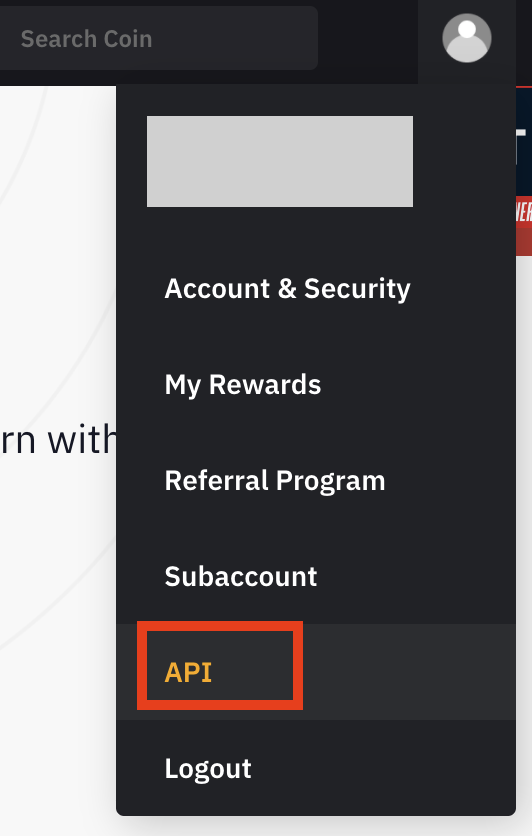
2.Click on "API Management" tab. In the "API Key" section, click "Create New Key".
3.Please select "System-generated API Keys".
4.In the next screen, do the following.
- Select "API transaction".
- Set "Name for the API key" to whatever you want to call your API key.
- Set API Key Permissions to "Read-Only".
- Select "Only IPs with permissions granted are allowed to access the Open API" and enter the below IP.
52.69.115.51,52.193.138.38,18.179.74.94
▼Unified Trading Account
- Check “Unified Trades”
- Check “Saving Staking and On-Chain Earn” in Asset Management
- If you have convert (exchange) history, check “Conversion History”
- If you plan to use cryptact’s Live View feature, also check “Account Transfer” and “Sub-Account Transfer” (if you use a sub-account).”
▼Standard Account
- Check “Standard Account”
- Check “Saving Staking and On-Chain Earn” in Asset Management
- If you have convert (exchange) history, check “Conversion History”
- If you plan to use cryptact’s Live View feature, also check “Account Transfer” and “Sub-Account Transfer” (if you use a sub-account).”
- Click on "Standard Account" or "Unified Trading" based on your own account. Please also choose "Convert, Exchange History."
5.Fill out your 2FA code and click "Submit". 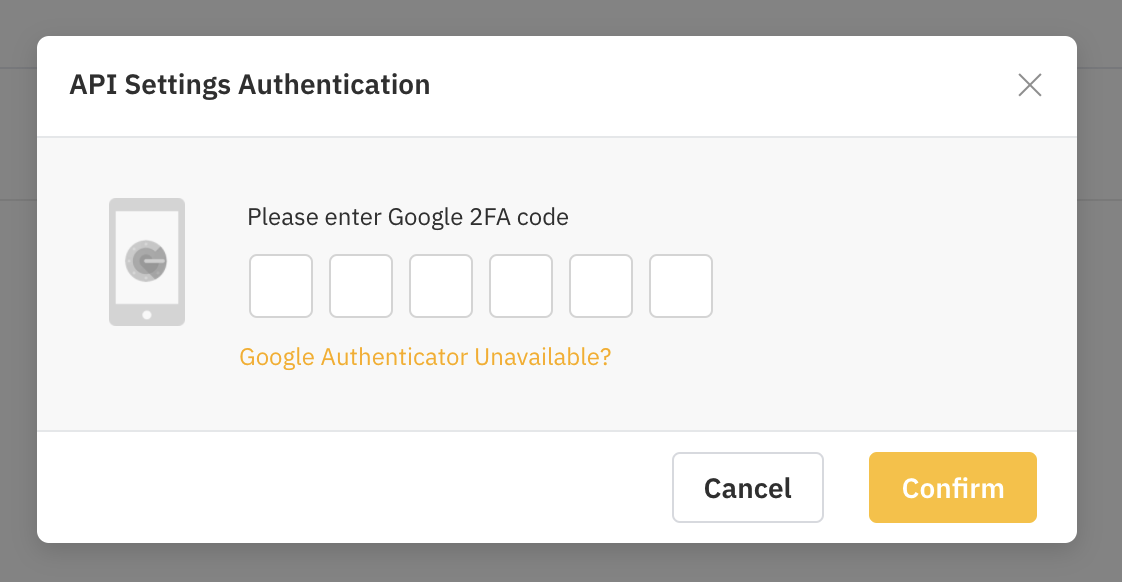
6.Generated API key and API secret will be displayed on the screen.
Make sure you note API key and API secret key down!
The API key and API secret are displayed only once upon creation. You will not be able to check them after this time. If you miss this opportunity, you will have to create another API key.
If you previously synced with an API that had a validity period of 3 months, and later removed that API integration, and now you want to sync with a new API without an expiration date through cryptact, please make sure to enter the same sub-account name as before. If it was not set previously, please leave it blank. Please be aware that if a different sub-account name is added, it will result in duplicated spot trading history.
4.How to add your Bybit API key to cryptact
Please select your exchange on the designated screen, enter your API key and secret key, then click "Submit" to initiate automatic API synchronization. If you conduct new transactions later, you'll need to manually click the "Sync" button to update your transaction history.
How to manage (add/sync) your API keys with exchanges
5.How to renew API
If you have already linked an API with an IP address in step 4, the following steps are unnecessary.
NEW: On January 19th, 2023, we have made our IP open to the public. You can now set up your API to have no expiry. For details on how to set it up this way, please refer to the above.
(1)Delete the existing API
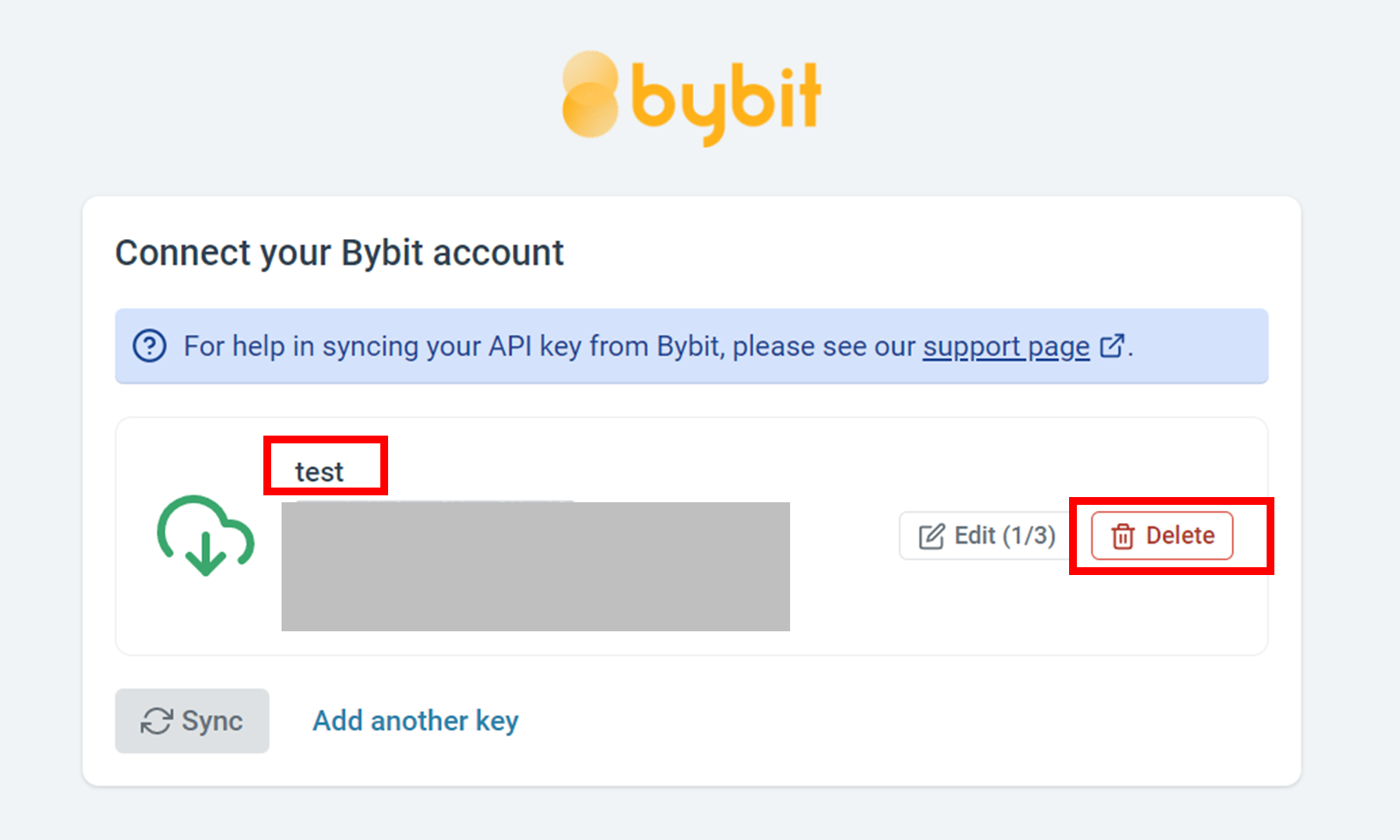
Delete the API listed on the Connect to your Bybit account screen.
Please remember the subaccount name you previously used for the API (in the below example, "test") before deleting it.If you added the API with an empty subaccount name, it would be displayed as blank. Please note that deleting the API will not delete the trade history from your ledger.
(2)Create a new API key
For details on how to do this, please refer to this link.
(3)Add the newly created API key
Connect to Bybit using the API key you have created in the above step.
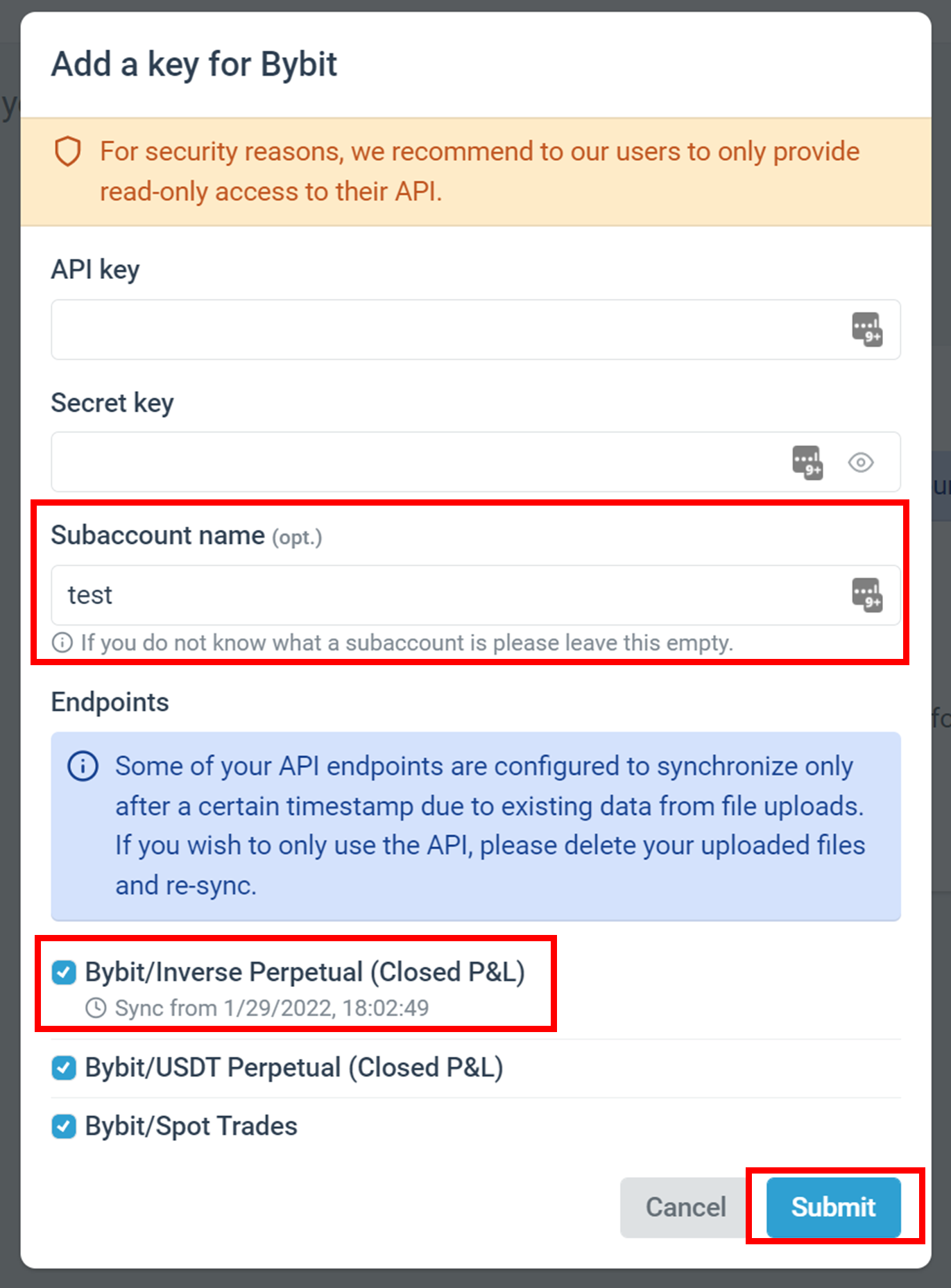
Please use the same subaccount name you have previously used. You can just leave it blank if you did not use any subaccount name previously. Please note that if you use a different subaccount name, you will end up with duplicate SPOT trade history.
▼If there is any trade history previously uploaded via files, the datetime will be displayed on the screen. Please tick the checkbox before clicking "Submit".
Disclaimer
Please note that we will not be held responsible for any damages caused by unauthorized use or other accidents due to API connections. When connecting, please be sure to use the API key specified by us.